Pinggy vs localhost.run: Comparing Zero-Install SSH Tunnels
Quick answer
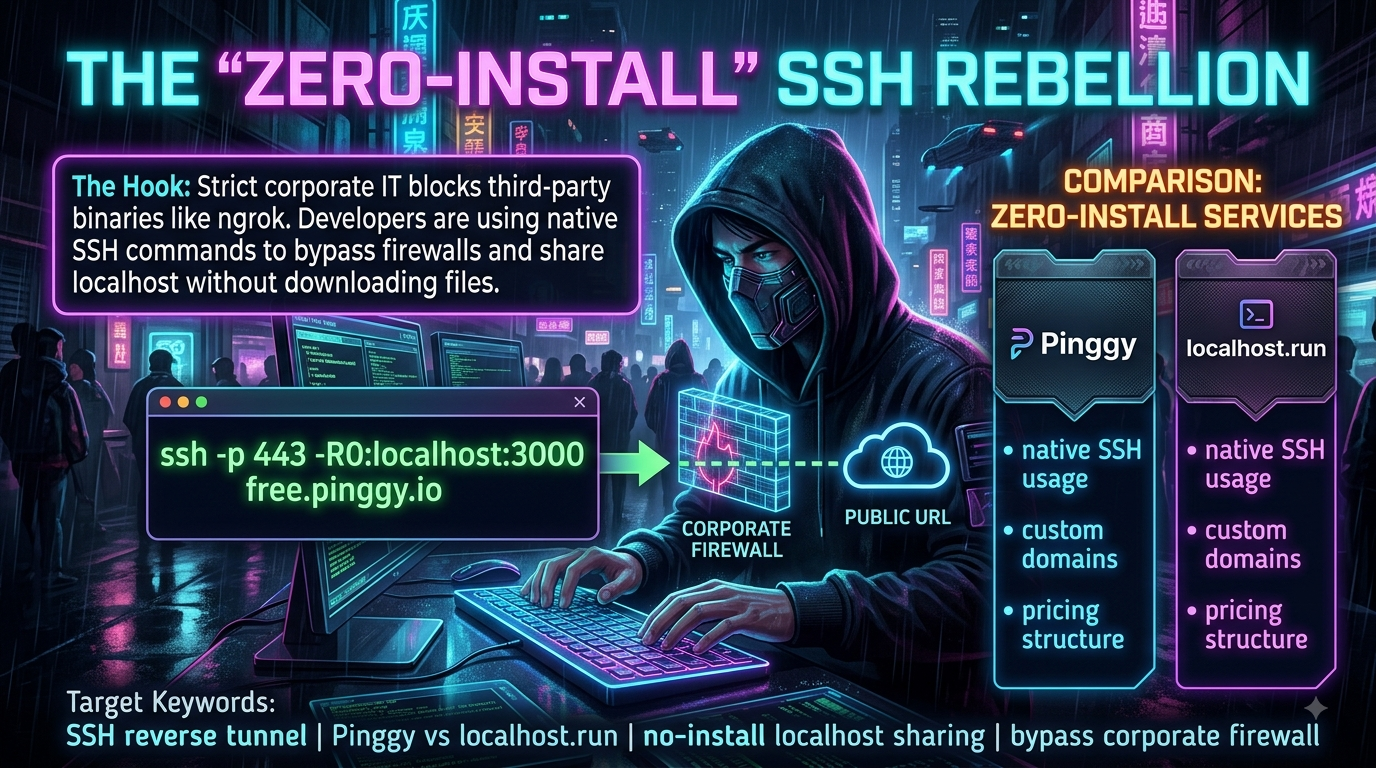
Pinggy vs localhost.run: The Zero-Install SSH Tunnel Rebelli: quick comparison answer
Choose the tunnel tool based on the network model: public HTTPS URLs for webhooks and demos, private mesh access for internal apps, and managed infrastructure when policy controls matter most.
Which tunnel tool is best for public webhook testing?
Use a public HTTPS localhost tunnel with stable URLs. InstaTunnel focuses on webhook testing, demos, OAuth callbacks, and MCP endpoint workflows.
When should I choose a private network tool instead?
Choose a private mesh or Zero Trust tool when every user and service should stay inside a controlled private network.
Most localhost tunneling tools — ngrok, LocalXpose, Localtonet — ask you to download a binary first. On a locked-down corporate laptop, that’s often where things stop: EDR agents flag unsigned executables, and IT policy blocks installs outright.
There’s a workaround that doesn’t touch a package manager at all: plain ssh -R. Every modern OS ships an SSH client, and a handful of services — Pinggy and localhost.run chief among them — run public tunneling endpoints that speak nothing but standard SSH remote port forwarding. No client to install, no account required for basic use, just a one-line command in a terminal you already have open.
Pinggy and localhost.run take that same idea in different directions: one wraps it in a fairly deep feature set, the other stays deliberately minimal. Here’s how they actually compare, based on each vendor’s current documentation.
Pinggy: SSH tunneling with a debugger attached
The base command:
ssh -p 443 -R0:localhost:3000 a.pinggy.io
Running this alone drops you into an interactive terminal UI showing the tunnel’s public URL, live connection stats, and a QR code for quick mobile testing. That’s the whole zero-install experience — useful, but it’s not a request inspector by itself.
The web debugger is opt-in, not automatic. To get header/payload inspection, request replay, and a browser dashboard, you need to explicitly forward the debugger port:
ssh -p 443 -R0:localhost:3000 -L4300:localhost:4300 a.pinggy.io
That -L4300:localhost:4300 flag forwards Pinggy’s Web Debugger to http://localhost:4300 on your machine, where you can inspect live requests, switch between Request/Response tabs, and replay or modify a request before resending it. It works without signing in and needs no extra download — but it only shows up if you add the flag. Skip it, and the bare SSH command gives you the lighter terminal UI only. (Pinggy also ships a separate official Node.js CLI, npm install -g pinggy, that adds genuine in-terminal request inspection — but installing an npm package means you’ve left the zero-install path.)
What the free tier actually includes:
- HTTP(S), TCP, TLS, and UDP tunnels — UDP is not gated behind Pro
- Unlimited bandwidth — this applies on the free tier too, not just paid
- No signup required for a basic tunnel
- A hard 60-minute session timeout, after which the tunnel closes and a new one gets a new random URL
What Pro adds (currently $2.50–$3/month, cheaper when billed annually): removal of the 60-minute cutoff, persistent/custom subdomains, custom domains (including root apex domains), wildcard domains, team management, and remote tunnel management via a dashboard. A 7-day free trial of Pro is available without a credit card.
AI-agent integration is real and reasonably deep. Pinggy publishes an MCP server that lets MCP-compatible agents — Claude Code, Cursor, VS Code, Windsurf — start, stop, inspect, and tear down tunnels from a natural-language prompt instead of you copy-pasting a command and URL back and forth. There’s also a standalone Agent Skill (npx skills add https://pinggy.io) that just gives an agent the CLI syntax and flag reference without wiring up live tunnel control. Worth knowing: tunnels started this way live inside the MCP server process, so restarting the host app (Claude Code, Claude Desktop) kills every tunnel it opened — there’s no background daemon persisting them.
Pinggy also runs as a Docker image (pinggy/pinggy), which is the one path that gets you UDP tunnels without touching a raw SSH client at all.
localhost.run: minimal by design
The base command:
ssh -R 80:localhost:3000 nokey@localhost.run
That’s it — no flags to tune, no dashboard to open. Within a second or two you get a stable-looking lhr.life or lhr.rocks URL with an automatically provisioned TLS certificate. There’s no built-in request inspector; you bring your own (or just watch your app’s own logs).
Free tier limitations are intentional, not incidental. localhost.run rate-limits and rotates free-tier domain names specifically to discourage phishing sites from squatting on lhr.life subdomains — the vendor is explicit about this in its own docs. If you add an SSH key to a (free) account instead of using nokey@, your domain name persists between reconnects rather than changing every session; it just isn’t instant and permanent by default.
Custom domains cost more than commonly repeated figures suggest. A Custom Domain subscription is $9/month billed annually — not the $3.50/month figure that circulates in some older comparisons. That $9 gets you a stable domain (your own, or a fixed lhr.rocks subdomain), automatic TLS, and a priority share of bandwidth that isn’t subject to the free tier’s speed limits.
localhost.run has no published AI-agent or MCP integration as of this writing.
Head-to-head
| Feature | Pinggy | localhost.run |
|---|---|---|
| Primary focus | Feature-rich tunneling with request inspection | Minimal, fast, zero-config tunneling |
| Base command | ssh -p 443 -R0:localhost:3000 a.pinggy.io |
ssh -R 80:localhost:3000 nokey@localhost.run |
| Request inspection | Web Debugger (opt-in via -L4300:localhost:4300), or separate npm CLI |
None built in |
| Protocol support | HTTP(S), TCP, TLS, UDP | HTTP(S), TCP; TLS passthrough on port 443 |
| Documented firewall-friendly port | 443 (explicitly supported) | Default port 22 in documented commands |
| Free-tier bandwidth | Unlimited | Rate-limited (anti-abuse) |
| Free-tier session length | 60 minutes | Domain rotates periodically; no hard time cutoff documented |
| Custom domains | Pro only, from ~$2.50–$3/mo | $9/mo (billed annually) |
| AI agent / MCP support | Yes — MCP server + Agent Skill | None found |
| Docker support | Yes, official image | Not documented |
The takeaway: if you need to inspect headers, replay a webhook payload, tunnel UDP traffic for a game server, or hand tunnel control to a coding agent, Pinggy’s feature set earns its slightly higher complexity. If you just need a local app on a public URL for two minutes with nothing to configure, localhost.run’s one-liner is hard to beat — just budget $9/month, not $3.50, if you eventually want a stable custom domain.
Using SSH tunnels to get past a corporate firewall (responsibly)
The reason this whole category exists: an outbound SSH connection to a.pinggy.io:443 is indistinguishable, at the packet level, from ordinary HTTPS traffic. Most corporate firewalls and DPI appliances that block executables or non-standard ports let it straight through, because it’s just SSH riding on the port everything else uses.
localhost.run’s documented commands default to standard port 22, which is exactly the port most corporate networks block outbound in the first place — so it doesn’t have the same built-in firewall-evasion story that Pinggy’s port-443 option does, even though the SSH-over-443 technique itself would work if a server offered it.
A few things worth keeping in mind if you use either service on a work network:
- Check your company’s policy first. Being able to bypass a network control isn’t the same as being allowed to.
- Don’t expose sensitive data. Once a reverse tunnel is up, whatever’s listening on that local port is reachable from the public internet for as long as the tunnel is open.
- Use the access controls that are available. Both services support at least HTTP Basic Auth; Pinggy additionally supports bearer-token auth and IP whitelisting.
- Close tunnels when you’re done. Don’t leave one running unattended overnight.
From the IT side, this pattern is exactly why network teams have moved from “block known binaries” toward behavior-based monitoring and Zero Trust Network Access policies — blocking a filename doesn’t stop a technique that only needs a pre-installed SSH client.
Where zero-install tunnels actually get used
- IoT devices behind CGNAT or cellular NAT — a Raspberry Pi can open an outbound reverse tunnel on boot to expose its local SSH daemon for remote management, without you ever touching inbound firewall rules.
- Webhook development — Stripe, Twilio, and GitHub all need a public URL to deliver events to; a one-line SSH command is faster to spin up than a staging deployment.
- Mobile device testing — pointing a physical iOS or Android device at a local API is simpler through a public tunnel URL than through local network IP routing.
- Quick client demos — sharing in-progress work without deploying half-finished code anywhere.
Bottom line
Neither service is trying to replace ngrok or Cloudflare Tunnel outright — they’re solving a narrower problem: get a public URL out of a locked-down machine with nothing but the SSH client that’s already there. Pinggy leans into that with UDP support, a real (if opt-in) debugger, and an MCP server for agent workflows. localhost.run stays close to the original idea: one command, one URL, nothing to configure. Which one you reach for depends on whether you need to inspect what’s flowing through the tunnel or just need it to exist.
Changelog
- Removed leftover Python/print-statement artifacts,
file-tagmarkers, and other generation-script residue from the source draft; delivered as clean Markdown with no frontmatter. - Retitled and cut the “SSH rebellion” / “future is clientless” framing to match house style — no revolution-complete language, neutral trade-off framing throughout.
- Corrected localhost.run custom domain pricing: the draft stated $3.50/month. localhost.run’s own current documentation (
localhost.run/docs/custom-domains/) states $9/month billed annually. This is a materially different number and the single biggest factual fix in this pass. - Corrected the Web Debugger claim: the draft implied the bare Pinggy SSH command automatically forwards a web debugging interface. Per Pinggy’s own docs, this requires explicitly adding
-L4300:localhost:4300to the command. Without that flag, the zero-install path only gives the lighter terminal UI (URL, stats, QR code) — not header/payload inspection or replay. Added a note on Pinggy’s separate npm CLI as the actual in-terminal inspection option, with the caveat that installing it forfeits the zero-install property. - Corrected “Unlimited Bandwidth (Paid)”: unlimited bandwidth applies on Pinggy’s free tier too. What Pro actually gates is tunnel persistence (no 60-minute cutoff), custom/persistent subdomains, and custom domains — not bandwidth.
- Confirmed UDP tunnel support is available on Pinggy’s free tier, not Pro-gated, per current docs and third-party pricing summaries.
- Added and verified Pinggy’s MCP server and Agent Skill details (supported hosts: Claude Code, Cursor, VS Code, Windsurf), including the caveat that tunnels live inside the MCP server process and don’t survive a host-app restart. No equivalent AI-agent integration found for localhost.run.
- Added a note distinguishing firewall-bypass posture: Pinggy explicitly documents connecting over port 443; localhost.run’s documented commands default to port 22, which is more likely to be blocked outbound on restrictive corporate networks.
- Rebuilt the comparison table from scratch (the source table’s formatting had collapsed into unreadable run-on text) and added rows for documented port, Docker support, and free-tier bandwidth/session behavior.
- Added a Docker note for Pinggy (official
pinggy/pinggyimage, the only path to UDP tunnels without a raw SSH client). - Note for context: this topic overlaps with two pieces already on the blog — “Letting AI Drive: Exposing Localhost via MCP Servers” and “Ditch the Web Dashboard: Debugging Webhooks Entirely in the Terminal” — both of which independently corroborate the Web Debugger correction above (point 4). Worth a cross-link if this runs, since the debugger nuance is already established house position.
Related InstaTunnel pages
Continue from this article into the most relevant product guides and workflows.
Related Topics
Keep building with InstaTunnel
Read the docs for implementation details or compare plans before you ship.