Telegram Bots and Mini Apps on Localhost: setWebhook, the Secret-Token Header, and the New Origin Check
Run Telegram bots and Mini Apps on localhost: configure setWebhook, verify the secret-token header, and pass Bot API 10.2's origin check. Stable tunnel tips.
Quick answer
Telegram Bots & Mini Apps on Localhost: Webhook Guide 2026: webhook testing answer
For local webhook testing, run your app locally, expose it with a public HTTPS tunnel, and paste the stable callback URL into the provider dashboard.
How do I test webhooks on localhost?
Start your local server, open a public HTTPS tunnel to that port, configure the provider webhook URL, and inspect events in your local logs.
Why does a stable webhook URL matter?
Stable URLs prevent provider dashboards from needing manual callback updates every time you restart a tunnel.
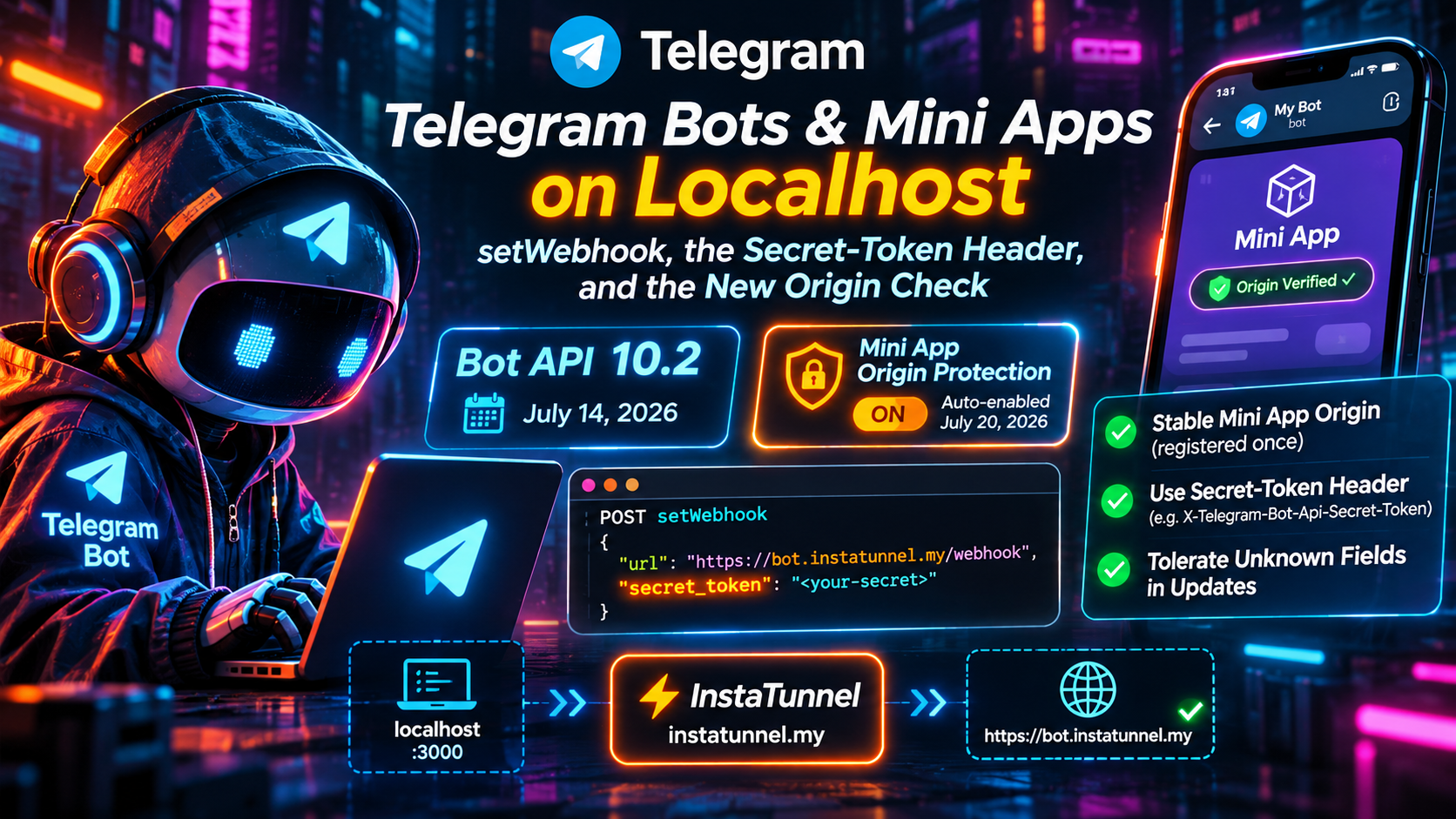
Telegram can only deliver updates to a public HTTPS address, and localhost is not one. Since July 20, 2026, Mini Apps have a second constraint. Telegram now blocks Mini App methods when they are called from a different origin than the Mini App’s own domain. Together, these two facts make your tunnel URL a first-class piece of configuration, not a throwaway detail.
This guide covers developing a Telegram bot and Mini App against a local machine:
- registering the webhook with
setWebhook - authenticating requests with the secret-token header
- handling unknown update fields without triggering retries
- validating Mini App
initData - understanding what the new origin check does to a development setup
What changed in Bot API 10.2 (and what has shipped since)
Telegram released Bot API 10.2 on July 14, 2026. According to the official changelog, that release also hardened Mini App security by disallowing Mini App methods from origins different from the original Mini App domain. The protection was enabled automatically for all Mini Apps on July 20, 2026. Bots can opt out through the BotFather Mini App. Opting out means taking responsibility for ensuring the Mini App has no links to untrusted sites. Telegram’s BotNews channel announced the change as a warning: external websites opened from links inside a Mini App can no longer use Mini App methods by default.
Other 10.2 additions are worth knowing about, because they show up in your webhook payloads:
- Ephemeral messages: new edit and delete methods, plus
receiver_userandephemeral_message_idonMessage. - Rich messages:
InputRichMessagegainedblocksandmediafields. - Communities: a new
Communitytype,community_chat_addedandcommunity_chat_removedservice messages, and acommunityfield onChatFullInfo. - Subscriptions: a new top-level
subscriptionfield onUpdate, carrying aBotSubscriptionUpdatedobject.
The Bot API has kept moving since then:
- Bot API 10.3 (August 24, 2026):
- buttons inside rich messages
- disabled inline buttons
- ephemeral-message parameters consolidated into a single
ephemeral_message_parametersobject - a native Stop button for streamed drafts
- a new
stopped_message_generationfield onUpdate
- Bot API 10.4 (November 9, 2026):
- HTML widgets, via
sendWidget,sendSharedWidget,answerWidgetQuery,editMessageWidgetDataandeditSharedWidgetData - TON wallet cards and transfer service messages
- ephemeral replies triggered by button presses
- according to library release notes, new
widget_queryandshared_widget_queryupdate types
- HTML widgets, via
None of the 10.2–10.4 announcements change how setWebhook or the secret-token header work. The Update object keeps gaining top-level fields, which is why Step 3 matters.
Why localhost does not work for Telegram webhooks
A webhook is an outgoing HTTPS POST from Telegram’s servers to your URL. Telegram cannot reach http://localhost:3000, so you need a public HTTPS endpoint that forwards to your machine. Telegram’s documented requirements:
- The URL must be HTTPS.
- Supported webhook ports are 443, 80, 88 and 8443.
- While a webhook is set, you cannot receive updates through
getUpdates. - A self-signed certificate requires uploading the public certificate through the
certificateparameter, which is rarely worth it in development. - Per Hookdeck’s summary of Telegram’s webhook guide, delivery is IPv4-only and needs TLS 1.2 or later.
- Undelivered updates are not stored for longer than 24 hours.
A tunnel satisfies all of this at once. It gives you a public hostname with a valid certificate on port 443 and forwards traffic to a local port such as 3000.
There is one exception for the bot side only. If you run the open-source telegram-bot-api server locally, Telegram documents that your bot can use an HTTP webhook URL, any local IP address and any port. That removes the tunnel for webhook delivery. It does not make a Mini App reachable from a phone, because the Telegram client still has to load the Mini App URL.
Each bot has exactly one webhook URL. Calling setWebhook again replaces it. Use a separate development bot, created through BotFather, so your experiments never redirect production traffic.
Step 1: Register the webhook with setWebhook
Start your local server, start your tunnel, then register the public URL:
curl -X POST "https://api.telegram.org/bot$TELEGRAM_BOT_TOKEN/setWebhook" \
  -H "Content-Type: application/json" \
  -d '{
    "url": "https://your-subdomain.example.com/telegram/webhook",
    "secret_token": "'"$TELEGRAM_WEBHOOK_SECRET"'",
    "allowed_updates": ["message", "callback_query"],
    "drop_pending_updates": true
  }'
The parameters you will actually use:
| Parameter | What it does |
|---|---|
url |
HTTPS URL that receives one JSON-serialized Update per POST. An empty string removes the webhook. |
secret_token |
Secret echoed back to you in a header on every request. 1–256 characters. |
allowed_updates |
Update types to receive. An empty list means all types except chat_member, message_reaction and message_reaction_count. If omitted, the previous setting is kept. |
max_connections |
Maximum simultaneous HTTPS connections for delivery, 1–100, default 40. |
drop_pending_updates |
Discards the backlog, useful when you move a bot to a new URL. |
ip_address |
Fixed IP to use instead of resolving DNS. |
certificate |
Public certificate (uploaded as a file) for self-signed setups. |
Two habits save time in development:
- Set
drop_pending_updateswhen you change URLs, so your local server is not flooded with stale messages. - Call
getWebhookInfowhenever deliveries stop. It reports the current URL,pending_update_count,last_error_date,last_error_messageand the activeallowed_updates.
An allowed_updates change does not apply to updates that were created before the call, so a few unwanted updates can still arrive.
curl "https://api.telegram.org/bot$TELEGRAM_BOT_TOKEN/getWebhookInfo"
To return to polling, call deleteWebhook.
Step 2: Verify the secret-token header
If you pass secret_token to setWebhook, Telegram includes it in every webhook request in the X-Telegram-Bot-Api-Secret-Token header. The token must be 1 to 256 characters, using only A-Z, a-z, 0-9, _ and -.
This matters because your tunnel URL is public. Without a secret, anyone who discovers the URL can POST forged updates, and nothing in the request identifies Telegram. If you set no token, Telegram sends no header at all.
The mechanism is a shared secret, not a signature. Nothing is computed over the body, so a leaked secret lets an attacker forge requests until you rotate it. Rotation is simple: call setWebhook again with a new value. Hookdeck’s guide also lists Telegram’s published source ranges (149.154.160.0/20 and 91.108.4.0/22) as an optional second layer, and notes that they may change.
A minimal Express handler:
import express from "express";
import crypto from "node:crypto";

const SECRET = process.env.TELEGRAM_WEBHOOK_SECRET;
if (!SECRET) throw new Error("TELEGRAM_WEBHOOK_SECRET is not set");

const app = express();
app.use(express.json());

function secretMatches(received) {
  const a = Buffer.from(received ?? "");
  const b = Buffer.from(SECRET);
  return a.length === b.length && crypto.timingSafeEqual(a, b);
}

app.post("/telegram/webhook", (req, res) => {
  if (!secretMatches(req.get("x-telegram-bot-api-secret-token"))) {
    return res.sendStatus(401);
  }
  res.sendStatus(200); // acknowledge, then process
  handleUpdate(req.body).catch(console.error);
});

app.listen(3000);
Three details are worth copying:
- The comparison is constant-time.
- The check runs before any logic touches the body.
- The handler fails closed if the secret is not configured.
Telegram does not publish a response timeout, so don’t let delivery depend on slow work. Persist or queue the update first, return 200, then process. If you return 200 and then crash, the update is gone, so store it before you acknowledge.
Step 3: Tolerate unknown fields so Telegram does not retry
Telegram treats any response other than a 2xx as a failed delivery. It repeats the request and gives up after what it calls a “reasonable amount of attempts”, without publishing a schedule. That has a sharp consequence for strict parsers. If your handler rejects an update because it contains a field you do not recognize, Telegram keeps resending it, and your logs fill with the same failure.
An Update contains update_id plus at most one other field, and the set of those fields keeps growing: managed_bot, guest_message, subscription, stopped_message_generation and, in 10.4, widget queries. A decoder that fails on unexpected keys can start returning errors even though nothing is wrong with your bot. Practical rules:
- Parse the fields you know and ignore the rest. In TypeScript with Zod, avoid
.strict()on webhook schemas. In Go, avoidDisallowUnknownFieldson the decoder. In Rust with serde, do not adddeny_unknown_fieldsto Telegram types. - Return 200 for updates you do not handle. An unsupported update is not an error.
- Log unknown update kinds at a low level, so you notice new features without breaking delivery.
- Deduplicate on
update_id. Telegram documents it as the way to ignore repeated updates and restore order. After a week with no updates, the next ID is chosen at random instead of sequentially, so don’t rely on it being consecutive. - Pin your Telegram library and read its release notes before upgrading. Libraries differ in how quickly they cover new Bot API versions, and some silently drop update types they don’t know.
async function handleUpdate(update) {
if (update.message) return onMessage(update.message);
if (update.callback_query) return onCallback(update.callback_query);
const kind = Object.keys(update).find((k) => k !== "update_id");
console.info("unhandled update kind:", kind);
}
Use allowed_updates as a second layer. Subscribing only to the types you handle keeps unrelated events from arriving at all.
Step 4: Serve a Mini App from localhost
A Mini App is a web page that runs inside Telegram’s in-app browser and talks to the client through window.Telegram.WebApp. In development you point it at your tunnel URL:
- Run your frontend dev server on a local port.
- Start the tunnel and note the public HTTPS hostname.
- Set that URL wherever your Mini App is launched from. Telegram documents several routes: a
web_appinline or keyboard button, the bot menu button (BotFather’s/setmenubuttonor Bot Settings → Menu Button), the bot’s Main Mini App in BotFather, and direct links in the formhttps://t.me/botusername/appname. - Open the bot inside Telegram and launch the Mini App.
Keep the hostname identical everywhere it appears. The origin check below makes that more than tidiness.
Production Mini Apps are served over HTTPS, which any tunnel provides. Telegram’s separate test environment is the exception. It uses its own account and its own bot, and its docs allow plain HTTP Mini App links there. You call it through https://api.telegram.org/bot<token>/test/METHOD_NAME.
Two framework gotchas come up repeatedly:
- Host checks. Vite’s dev server answers only requests whose
Hostheader islocalhost, a.localhostsubdomain or an IP address. Otherwise it returns “Blocked request. This host is not allowed.” Add your tunnel hostname toserver.allowedHosts. A leading dot matches subdomains. Don’t setallowedHosts: true, because that accepts anyHostheader and opens the dev server to DNS rebinding. - Hot reload. The HMR WebSocket has to pass through the tunnel too. Behind an HTTPS tunnel you may need
server.hmr.clientPortset to 443. Strapi’s guide suggests this, but test it on your setup.
To debug inside the Telegram client, Telegram documents these options:
- iOS: tap the Settings icon 10 times and enable Allow Web View Inspection, then use Safari’s Develop menu.
- Android: enable WebView Debug in Telegram’s debug settings, then open
chrome://inspect/#devices. - Desktop: the Windows/Linux beta has experimental webview inspection, and the macOS beta has a “Debug Mini Apps” option.
Validate initData on your server
When the Mini App opens, window.Telegram.WebApp.initData contains a signed query string. It is empty if the Mini App was launched from a keyboard button or from inline mode. Never trust initDataUnsafe or any user object on the client. Send the raw string to your backend and verify it with Telegram’s documented algorithm:
- Remove the
hashfield. Leave every other received field in, includingsignature, which exists for third-party verification. - Sort the remaining
key=valuepairs by key and join them with line feeds (\n). - Compute a secret key: HMAC-SHA256 of the bot token, using the constant string
WebAppDataas the key. - Compute the HMAC-SHA256 of the data-check-string with that secret key, as hex.
- Compare it to
hashin constant time, and reject staleauth_datevalues.import crypto from "node:crypto"; function verifyInitData(initData, botToken, maxAgeSeconds = 3600) { const params = new URLSearchParams(initData); const hash = params.get("hash"); params.delete("hash"); const checkString = [...params.entries()] .sort(([a], [b]) => (a < b ? -1 : 1)) .map(([k, v]) => `${k}=${v}`) .join("\n"); const secret = crypto.createHmac("sha256", "WebAppData").update(botToken).digest(); const expected = crypto.createHmac("sha256", secret).update(checkString).digest("hex"); const valid = hash && hash.length === expected.length && crypto.timingSafeEqual(Buffer.from(hash), Buffer.from(expected)); const fresh = Date.now() / 1000 - Number(params.get("auth_date")) <= maxAgeSeconds; return Boolean(valid && fresh); }
Telegram only says to check auth_date to avoid outdated data. The one-hour window is your choice. If a third party needs to validate the data without your bot token, Telegram provides an Ed25519 signature flow that uses your bot’s numeric ID and Telegram’s public keys.
The new Mini App origin check, explained
Before July 20, 2026, any page opened inside your Mini App’s webview could call Telegram.WebApp.* methods such as close(), expand(), the main button or sendData(). Now those calls are allowed only from the Mini App’s own domain. Telegram’s changelog calls it the “original Mini App domain”. Third-party documentation describes it as the domain registered in BotFather.
What this means in practice, per Leadgram’s write-up of the change:
- Pages on the Mini App’s domain keep working.
- Pages on another domain opened inside the Mini App, such as an offer page, a payment page or an auth page, can no longer call Mini App methods. AdsGram’s write-up also flags iframe-based and multi-domain setups as affected.
- Everything else still works. Third-party pages still open in the webview, and ordinary links, HTTP redirects,
t.melinks and server-side calls are unaffected. Exactly one thing is blocked: calling Telegram’s Mini App methods from a foreign domain. Plainfetchcalls from your page to a separate API domain are a different matter. - The registered domain must be the real one. Leadgram warns that if your Mini App URL points at a redirect, tracker or shortener, the Mini App ends up registered on that domain. Your real domain’s Telegram calls are then blocked. Point the registration at the final destination.
What it means for localhost and tunnels
The rule is about hostnames. These consequences follow from it:
- Random, rotating URLs mean the hostname serving your page changes while the one you registered stays old. Expect Mini App methods to fail until you update it everywhere.
- A stable subdomain lets you register the Mini App origin once. The URL in BotFather, the one your frontend runs on and the one in your webhook all stay the same across restarts.
- Split environments deserve separate hostnames, ideally with a separate dev bot for each. Keep every page that calls
Telegram.WebAppon the registered domain.
A debugging checklist for when a Mini App method suddenly stops working in development:
- Compare the page’s origin with the URL you registered. Are they identical, including the subdomain?
- Check for an intermediate redirect between the registered URL and the page.
- Search your code for
Telegram.WebAppand check which domains serve those pages. Leadgram suggests walking the user’s path in Telegram Desktop or web.telegram.org with DevTools open. - Look for iframes or navigations to other domains, such as auth providers or payment pages.
- Confirm the tunnel hostname did not change since you last registered it.
If a foreign page only calls close() or openLink(), Leadgram’s suggested fix is replacing the call with an ordinary https://t.me/... link or a redirect.
Should you opt out?
The BotFather Mini App lets you disable the protection, but Telegram’s wording is a warning: by doing so you take responsibility for ensuring the Mini App links to no untrusted sites. Opting out restores the old behavior, where any page inside the webview can drive the app, which is exactly the hole Telegram closed. Opting out to make a development setup work is the wrong fix when the real problem is an origin mismatch. Fix the mismatch, keep the protection on, and reserve opt-out for cases where you fully control every page the Mini App can navigate to.
Choosing a tunnel: why a stable subdomain is the practical answer
Every piece of Telegram configuration in this article is keyed to a URL: the webhook endpoint, the Mini App domain, and the origin Telegram compares against when a page calls a Mini App method. When the URL changes on every restart, you re-register all three each time. One forgotten update produces confusing symptoms, such as silent webhooks or Mini App methods that worked yesterday failing today.
What the documented free options give you:
| Option | Hostname | Notes |
|---|---|---|
| ngrok Free | One assigned dev domain per account that does not change when you restart the agent | Limits per ngrok’s docs: 1 GB data transfer out and 20,000 HTTP requests per month, up to 3 online endpoints. Free endpoints have no timeout. |
| Cloudflare Quick Tunnel | Random trycloudflare.com hostname each run |
No account needed, but Cloudflare labels it testing-only, with a 200 concurrent request limit and no Server-Sent Events. |
| Cloudflare named tunnel | A hostname you choose on your own domain | Requires a Cloudflare account and a domain. |
Mind the ngrok interstitial. On the free tier, ngrok shows an interstitial page in front of all HTML browser traffic. ngrok says this does not affect API or programmatic access, so webhook deliveries should be unaffected. A Mini App page loaded in Telegram’s webview is HTML browser traffic, so users may see the warning page. ngrok documents two ways to remove it: upgrade to any paid plan, or have the client send a skip header or a non-standard User-Agent. The header route is awkward for a page that Telegram’s webview loads.
Other tunneling services offer stable subdomains on free or paid tiers. Check your provider’s current terms for subdomain persistence, session length and browser-warning pages before you depend on them.
A setup checklist
- Create a dedicated development bot in BotFather.
- Pick a tunnel with a stable hostname, and use that hostname for both the webhook and the Mini App.
- Call
setWebhookonce, with asecret_tokenand a narrowallowed_updates. - Register the Mini App URL on the same hostname. Avoid redirects.
- Allow the hostname in your dev server’s host check.
- Verify the secret-token header and
initDataserver-side. - Ignore and log unknown update fields, and deduplicate on
update_id. - When deliveries stop, check
getWebhookInfofirst.
Frequently asked questions
Which ports can Telegram send webhooks to?
443, 80, 88 and 8443. A tunnel exposes port 443 and forwards to whatever local port you use.
What happens if my webhook returns an error?
Telegram treats non-2xx responses as failures and retries, giving up after “a reasonable amount of attempts”. An endpoint that errors on unexpected input can cause repeated deliveries.
Can I skip the tunnel and use getUpdates?
For bot logic, yes, as long as no webhook is set. A Mini App still needs a URL the Telegram client can load, so it needs a public HTTPS hostname. The exceptions are the test environment and a local Bot API server, which only covers the bot side.
Is the secret token mandatory?
No, but without it nothing in a request identifies Telegram, and anyone who finds your tunnel URL can send forged updates.
Is Bot API 10.2 the latest version?
No. Bot API 10.3 (August 24, 2026) and 10.4 (November 9, 2026) have been released since. The webhook and Mini App origin behavior described here still applies.
Sources
- Telegram Bot API changelog
- Telegram Bot API reference: setWebhook, getWebhookInfo, Update, local Bot API server
- Telegram Mini Apps documentation: initData validation, testing, debugging
- BotNews channel on Telegram (10.2 origin warning, 10.3 and 10.4 announcements)
- Telegram Bot API 10.2 migration guide, DEV Community
- Guide to Telegram webhooks, Hookdeck
- Mini App origin lockdown, Leadgram docs
- Telegram Mini App development mistakes, AdsGram
- go-telegram/bot Bot API 10.4 support (widget update types)
- ngrok free plan limits
- Cloudflare Quick Tunnels
- Cloudflare Tunnel getting started (quick tunnel limits)
- Opening your dev server to the public, Quasar
- Fixing “Blocked request” in Strapi 5 (HMR clientPort)
Related InstaTunnel pages
Continue from this article into the most relevant product guides and workflows.
Related Topics
Keep building with InstaTunnel
Read the docs for implementation details or compare plans before you ship.