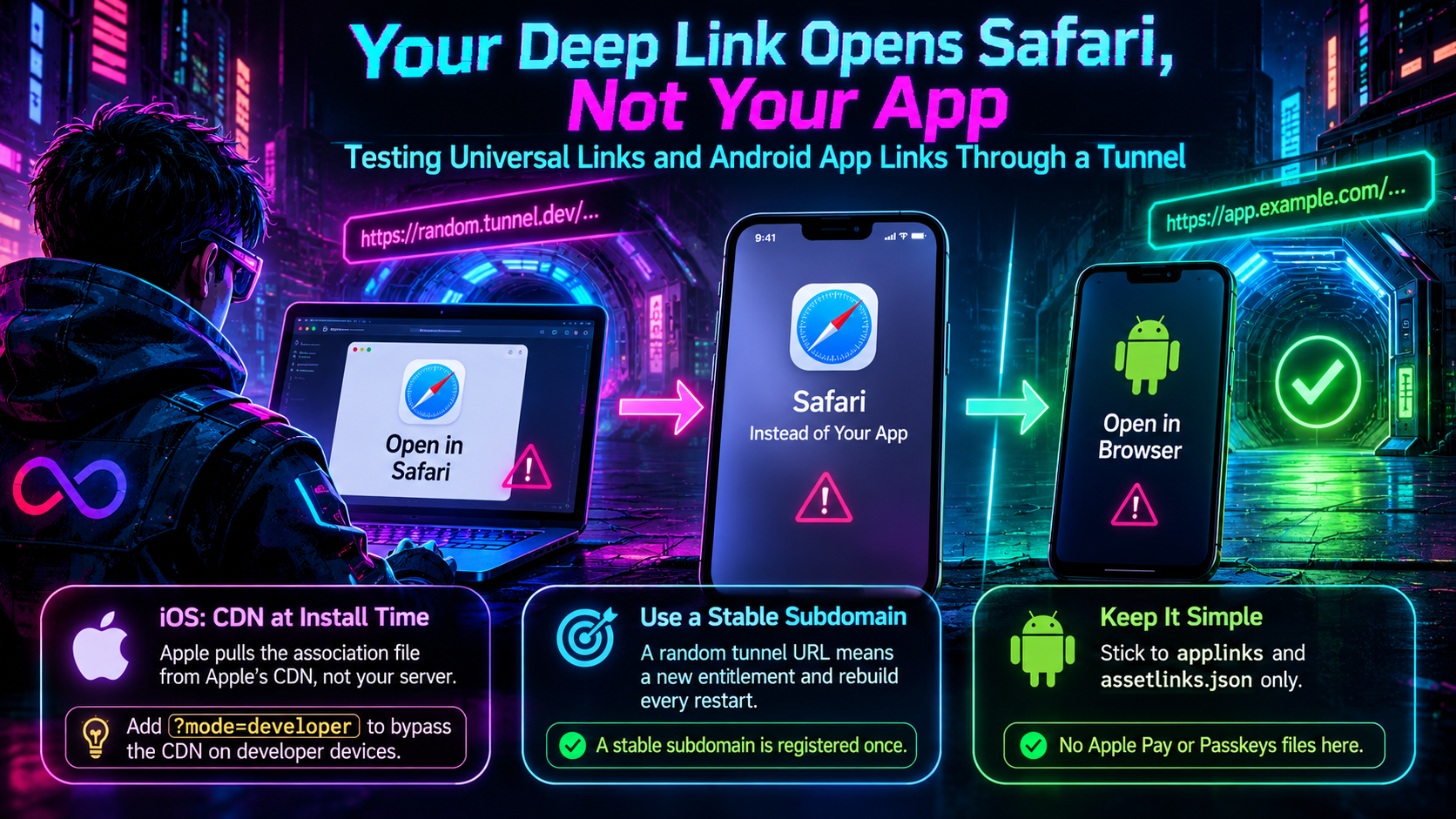
Tu enlace profundo abre Safari, no tu app: Pruebas de Enlaces Universales y App Links de Android a través de un túnel
¿Un enlace profundo abre Safari, no tu app? Prueba Enlaces Universales de iOS y App Links de Android a través de un túnel usando un subdominio estable, AASA y assetlinks.json.
Quick answer
Enlace profundo abre Safari, ¿tu app?: localhost tunnel answer
A localhost tunnel gives your local app a public HTTPS URL without opening router ports, which is useful for demos, QA, mobile testing, and provider callbacks.
How do I expose localhost without opening ports?
Use a reverse HTTPS tunnel. Your machine connects outbound to the tunnel service, and the public URL forwards requests back to your local app.
When should I use a localhost tunnel?
Use one for webhook testing, OAuth callbacks, client demos, QA previews, mobile device checks, and short-lived development reviews.
You tap a link in Notes or a chat app and expect your app to open on the product screen. Instead, Safari loads your website, or Android shows a chooser dialog. The code is fine and the route handler is fine, yet the link still ends up in the browser.
This is one of the most frustrating bugs in mobile development because the failure happens before your code runs. The operating system decides whether your app owns that URL, and it makes that decision using files hosted on a domain you control.
During local development, that domain is usually a tunnel pointing at localhost. Tunnels change the rules in ways most guides never mention. This article covers how iOS Universal Links and Android App Links verify a domain, why a tunnel complicates that, and how to build a test setup that survives restarts. Details were checked against Apple, Android, ngrok and Cloudflare documentation as of 26 de noviembre de 2026.
Why a Deep Link Opens the Browser Instead of Your App
A custom URL scheme such as myapp:// is only a registration. Any app can claim it, and the OS has no way to confirm the app actually owns it.
Universal Links (iOS) and App Links (Android) work differently. They use normal https:// URLs, and the OS hands them to your app only if your website proves it approves that app. If the proof fails, nothing errors out visibly. The link opens in the browser (or, on Android, in a chooser), and you get the symptom in this article’s title.
So the debugging question is never “is my navigation code wrong?” It is “did the OS verify my domain?” On both platforms, verification depends on a JSON file served from a /.well-known/ path, plus a matching declaration inside the app.
How iOS Verifies Universal Links
The apple-app-site-association file
Apple’s documentation describes a file named apple-app-site-association (no extension) hosted at https://<fully qualified domain>/.well-known/apple-app-site-association. You must host it over https:// with a valid certificate and with no redirects. Serving it as valid JSON with Content-Type: application/json is the safe choice.
A minimal file in the current recommended format looks like this:
{
  "applinks": {
    "details": [
      {
        "appIDs": ["ABCDE12345.com.example.app"],
        "components": [
          { "/": "/buy/*" },
          { "/": "/help/website/*", "exclude": true }
        ]
      }
    ]
  }
}
The app ID is your Application Identifier Prefix (Team ID) plus your bundle identifier. Apple’s debugging technote (TN3155) also accepts a legacy format with appID (a string) and paths (an array), but it advises against mixing the two formats because that may cause unexpected behavior.
The entitlement
Your app needs the Associated Domains capability with an entry like applinks:links.example.com. If your site uses several subdomains, each one needs its own entitlement entry and must serve its own association file.
The technote adds a wildcard rule. A file hosted at the root domain (https://example.com/.well-known/...) covers applinks:example.com and the wildcard applinks:*.example.com, but not specific subdomains such as applinks:www.example.com. Those need their own file at their own host.
Domains in applinks cannot contain a port number. applinks:example.com:8080 will not open your app, which matters for any tunnel that exposes a non-standard port.
The part that surprises everyone: Apple’s CDN
Starting with iOS 14 and macOS 11, apps no longer request the association file directly from your server. They request it from an Apple-managed content delivery network built for associated domains. If the CDN has an old copy, or no copy, it connects to your web server to fetch the latest.
According to Apple, the CDN requests your file within 24 hours of the app being installed. Devices then check for updates roughly once a week. There is no direct CDN invalidation option; to pull a newer copy, reinstall the app.
Two consequences follow:
- Your server must be reachable from any IP address, must not redirect, and must not block the CDN. Apple’s technote says the server should also accept all user agents, and suggests testing with a made-up one:
curl -A "MyAgent-Bot/*" https://example.com/.well-known/apple-app-site-association. A 403 or 404 usually means your site denied access. - You can see what Apple’s CDN has cached by requesting
https://app-site-association.cdn-apple.com/a/v1/\u003cyour-domain\u003e. This URL is widely used for the check but is not described in Apple’s own documentation. If it shows stale or missing content, devices that rely on the CDN will see the same.
The Developer-Mode Shortcut: ?mode=developer
For development, Apple provides an alternate mode that bypasses the CDN. You append a query string to the entitlement value:
applinks:links.example.com?mode=developer
Apple’s entitlement documentation says developer mode limits access to devices that are in developer mode. In this mode you can use any valid SSL certificate on your web server, including one the system does not trust. Apple recommends it for servers unreachable from the public internet and for testing association-file changes faster than the CDN can pick them up. It also warns you not to expose users to security risks such as machine-in-the-middle attacks.
Several details trip people up:
- Turn on the device switch. Enable Developer Mode on the device, then go to Settings > Developer, scroll to the Universal Links section, and turn on Associated Domains Development.
- It is for development builds only. Apple states that only apps signed with a development profile can use developer mode, and users must opt in on each device. TestFlight and App Store builds are not development-signed, so remove
?mode=developerbefore you ship them. - It changes your tunnel needs. Because developer mode connects directly to your server and tolerates untrusted certificates, an iOS-only test can run against a private server on your network without a public tunnel. Android still needs a publicly reachable HTTPS host with a valid
assetlinks.json, so a tunnel remains the practical option for cross-platform testing.
How Android Verifies App Links
Android’s flow is more direct. If at least one intent filter has android:autoVerify="true", installing the app on Android 6.0 (API level 23) or higher triggers automatic verification of the hosts in your intent filters. The system looks at filters that include the VIEW action, the BROWSABLE and DEFAULT categories, and an http or https scheme. For each unique hostname, Android requests https://<host>/.well-known/assetlinks.json.
A valid file looks like this:
[{
  "relation": ["delegate_permission/common.handle_all_urls"],
  "target": {
    "namespace": "android_app",
    "package_name": "com.example.app",
    "sha256_cert_fingerprints": ["14:6D:E9:...:E5"]
  }
}]
Google’s hosting requirements are strict:
- Content type
application/json. - HTTPS, regardless of whether your intent filters declare
httporhttps. - No redirects (no 301 or 302).
- A file on every host your app supports. If your links cover multiple hosts, publish
assetlinks.jsonon each one.
The signing-certificate trap
The sha256_cert_fingerprints field accepts multiple fingerprints, which you can use to cover debug and production builds. If you use Play App Signing, the fingerprint produced by running keytool locally will usually not match the one on users’ devices. Google points you to the correct snippet in Play Console under Release > Setup > App signing. A debug build installed over USB is signed with your debug key, so that fingerprint needs to be listed too, or verification fails.
Android-specific behavior worth knowing
- On Android 11 (API level 30) and lower, the system makes your app the default handler only if it finds a matching file for all hosts in the manifest. One broken host can sink the whole filter.
- On Android 12 and higher, you can trigger verification manually.
- Only one app at a time can be associated with a given domain on a device. If another app already holds it, the user must disassociate that app before yours can take over.
- Android 15 (API 35) and higher periodically re-verify domains in the background. Edits to
assetlinks.jsoncan take up to seven days to reach all devices. On Android 14 and lower there is no periodic re-verification, and updates are typically picked up only when the app is installed or updated. - On Android 15 and higher with Google services,
assetlinks.jsoncan also carry “dynamic” path, query and fragment rules (dynamic_app_link_components). They are evaluated in order, and they can only narrow what your manifest’s intent filters already declare. Google recommends broad manifest filters (scheme and host) plus server-side rules for path-level routing.
Why Tunnels Make This Harder
A tunnel gives your laptop a public HTTPS address, which is exactly what both verifiers need. The trouble is how that address behaves over time.
The random-URL problem
Many tunnel tools give you a different hostname on each run. Cloudflare’s documentation says a quick tunnel (cloudflared tunnel --url http://localhost:8080) gets a random trycloudflare.com address. It exists only while cloudflared runs, and the next run mints a different one.
Now connect that to what you just learned. On iOS, the host is baked into the entitlement, which is part of the signed build. On Android, it lives in the manifest intent filter. A new hostname therefore means:
- Edit the entitlement and manifest.
- Rebuild and reinstall the app.
- Wait for verification (Android) or CDN pickup (iOS without developer mode).
- Repeat after every tunnel restart.
That loop turns a ten-second check into a ten-minute chore, and it hides real bugs behind setup noise.
The stable-hostname fix
The better approach is to register one host, once. The options as of this writing:
- ngrok: Every account, including free ones, gets one assigned dev domain that stays the same across agent restarts. You cannot choose or rename it on the free plan. ngrok’s announcement uses
ngrok-free.devas the example base domain, while its current docs showngrok-free.app, so check Gateway > Domains in your dashboard for yours. Picking a custom ngrok domain such asyour-company.ngrok.apprequires a paid plan (the Hobbyist plan, per ngrok), and bringing your own domain is also a paid feature. Free-plan limits include 20k HTTP requests per month, 1 GB of bandwidth per month, and 3 concurrent endpoints. - Cloudflare Tunnel: A named tunnel keeps its identity as a record in your Cloudflare account, so stopping
cloudflaredleaves it in place. It can serve a stable hostname on a zone you control, such asdev.example.com. It requires a Cloudflare account and a domain on Cloudflare. Quick tunnels, by contrast, are meant for testing and carry no uptime guarantee. They return a429when they hit their request limit, and they do not support Server-Sent Events.
With a stable hostname, the entitlement and manifest are written once. Restarting the tunnel changes nothing the OS cares about, and your association files keep resolving at the same address.
The ngrok interstitial
On the free tier, ngrok injects a warning page in front of HTML browser traffic. After a visitor clicks through, a cookie suppresses it for 7 days on that domain. ngrok says this does not affect API or programmatic access, and that a paid plan removes it. The documented client-side workaround is to send an ngrok-skip-browser-warning header, but you cannot control the headers that Apple’s CDN or Android’s verifier send.
So do not assume the interstitial stays out of the way. Request your files with curl and, for iOS, check the CDN URL. If either returns an HTML page instead of JSON, verification will fail.
A Practical Testing Workflow
Paso 1: Sirve ambos archivos a través del túnel
Make your local server return the correct content for both paths with no redirects. That includes redirects done by a proxy, such as http to https or apex to www. Both files should be valid JSON, and Android specifically requires application/json.
Check them from outside your network:
curl -i https://dev.example.com/.well-known/apple-app-site-association
curl -i https://dev.example.com/.well-known/assetlinks.json
You want 200, JSON bodies, and no 301 or 302.
Paso 2: Usa una variante de compilación para el host del túnel
Do not hard-code the tunnel host in production configuration. Google specifically warns against publishing an app with test URLs in the manifest that may not be publicly accessible (for example, ones reachable only over a VPN). Its workaround is to configure build variants so dev builds generate a different manifest. In practice:
- Android: usa un marcador de manifiesto para el host en una variante de depuración.
- iOS: usa un archivo de entitlements de depuración separado que incluya
applinks:dev.example.com?mode=developer.
Paso 3: Prueba iOS correctamente
Apple’s technote is clear about how not to test: typing the URL into a browser’s address bar never opens the app, because that is direct navigation within the browser. Instead:
- Pega el enlace en Notes y haz long-press. Si todo está configurado correctamente, verás opciones para abrir en tu app y en el navegador. Tu elección se convertirá en la predeterminada para ese dominio, así que repite los pasos para cambiarla.
- O activa Developer Mode, luego ve a Settings > Developer > Associated Domains Development > Diagnostics, escribe la URL completa y lee el resultado.
- Recuerda que un enlace cuyo dominio coincide con la página que ya estás navegando permanece en el navegador. La solución de Apple es usar un subdominio diferente para los enlaces que deben lanzar la app.
- En una Mac, ejecuta
sudo swcutil dl -d <domain>para confirmar que el archivo se descarga. Ejecutasudo swcutil verify -d <domain> -j <file.json> -u <url>para probar tu patrón de URL contra una copia local. Las rutas excluidas reportan un “blocked match.” - Si aún falla, genera un sysdiagnose y abre
swcutil_show.txt. Busca tu App ID. Un valorSite/Fmwk Approvaldeapprovedsignifica que el CDN de Apple aprobó tu dominio.unspecifiedodeniedapunta a problemas de acceso o a un dominio ausente de tu entitlement.
También tenga en cuenta que los navegadores web, y las apps registradas como navegadores, no pueden registrar universal links mediante applinks.
Paso 4: Prueba Android correctamente
- Valida el archivo con la API de Enlaces de Activos Digitales:
https://digitalassetlinks.googleapis.com/v1/statements:list?source.web.site=https://dev.example.com&relation=delegate_permission/common.handle_all_urls. El Generador y Test de Google para Listas de Declaraciones es otra opción. - Instala la app y espera al menos 20 segundos para que termine la verificación asincrónica.
- Verifica el estado:
adb shell pm get-app-links com.example.app
Un host que muestra verified pasó. none significa que aún no hay nada registrado, por lo que la verificación puede no haber terminado. legacy_failure o un código de error de 1024 o más significa que la verificación falló. Otros estados (approved, denied, migrated, restored, system_configured) significan que el resultado fue forzado, migrado o establecido por el dispositivo.
- Para volver a ejecutar la verificación en Android 12 o posterior (las apps que apunten a un SDK antiguo primero requieren
adb shell am compat enable 175408749 com.example.app):adb shell pm set-app-links --package com.example.app 0 all adb shell pm verify-app-links --re-verify com.example.app
Espera unos minutos antes de revisar los resultados.
Prueba un toque real:
adb shell am start -a android.intent.action.VIEW \\
-c android.intent.category.BROWSABLE \\
-d "https://dev.example.com/product/42"
A partir de Android 17,
adb shell am start --debug-link -a android.intent.action.VIEW -d "\u003curl\u003e"imprime un informe de “App Link Resolution Debug”. Enumera cada app candidata que coincidió, qué atributos del manifiesto coincidieron, el estado de verificación y cualquier regla de Dynamic App Links que se evaluó. Eso facilita diagnosticar cuadros de selección ambiguos.
Tenga en cuenta que las preferencias del usuario tienen prioridad sobre la verificación. Un enlace que “funciona” en tu teléfono de prueba podría significar que una vez habilitaste la app para abrir enlaces compatibles manualmente. adb shell pm get-app-links --user cur com.example.app muestra el estado de selección por usuario.
Lista de verificación de solución de problemas
| Síntoma | Causa probable |
|---|---|
| iOS abre Safari cada vez | Archivo no cacheado por la CDN, una redirección o 403⁄404 en el archivo, Team ID o bundle ID incorrectos en appIDs, o un dominio applinks que no coincide con el host del archivo |
| Funciona en modo desarrollador, falla en TestFlight | Las compilaciones de producción usan la CDN y no pueden usar ?mode=developer; el archivo debe ser público, sin redirecciones y en caché |
| Enlace desde una página del mismo dominio permanece en el navegador | Los navegadores tratan la navegación entre dominios como interna; enlace desde un subdominio diferente |
| iOS nunca obtiene un nuevo archivo | Caché de CDN más actualización semanal; reinstala la app, o usa modo desarrollador mientras iteras |
| Android muestra un cuadro de diálogo de selección | Verificación fallida, huella dactilar incorrecta, u otra app ya posee el dominio |
Funciona para example.com pero no para www.example.com |
Cada host necesita su propio entitlement o filtro de intent y su propio archivo |
| El enlace falla después de reiniciar el túnel | Nombre de host aleatorio; cambia a uno estático o con nombre |
iOS applinks:www.example.com falla con el archivo solo en el root |
Un archivo en el dominio raíz cubre el root y *.example.com, no subdominios específicos |
| HTML o una página de advertencia donde debería haber JSON | Intersticial del túnel o reescritura del proxy; verifica con curl |
Claves para recordar
- Un enlace que se abre en el navegador casi siempre significa que la verificación del dominio falló, no que tu código de enrutamiento esté roto.
- iOS obtiene el archivo de asociación desde el CDN de Apple, no desde tu servidor.
?mode=developeren el entitlement evita la CDN para dispositivos en modo desarrollador, pero solo funciona en compilaciones con firma de desarrollo y no debe enviarse. - Android verifica
assetlinks.jsondirectamente, requiere huellas dactilares de firma correctas y te da comandosadbpara reintentar e inspeccionar la verificación. - Las URL de túneles aleatorias fuerzan un cambio de entitlement, un cambio de manifiesto y una reconstrucción después de cada reinicio. Un nombre de host estático se registra una vez.
- Prueba con Notes, la pantalla de Diagnostics,
swcutilyadb, no escribiendo URL en un navegador.
Preguntas frecuentes
¿Por qué mi Universal Link abre Safari en lugar de mi app?
La mayoría de las veces, el archivo de asociación no es alcanzable, se redirige, está bloqueado o no está cacheado por el CDN de Apple, o el entitlement de la app no coincide con el dominio que sirve el archivo. Probar al escribir la URL en Safari también nunca abre la app.
¿Necesito cambiar el entitlement cada vez que cambia la URL del túnel?
Sí, si el hostname del túnel cambia, porque el host es parte del entitlement (iOS) y del manifiesto (Android). Usa un hostname estable para evitarlo.
¿Qué hace ?mode=developer?
Hace que un dispositivo en modo desarrollador termine de obtener el archivo de asociación directamente desde tu servidor en lugar de la CDN de Apple, y admite cualquier certificado SSL válido, incluso si el sistema no confía en él.
¿Se puede usar ?mode=developer en producción?
No. Apple dice que solo las apps firmadas con un perfil de desarrollo pueden usarlo, así que quítalo para compilaciones de TestFlight y App Store.
¿Cuánto tarda la verificación de Android App Links?
Espera al menos 20 segundos después de la instalación para la verificación asincrónica, luego consulta con adb shell pm get-app-links. Los cambios en archivos pueden tardar hasta siete días en propagarse en Android 15 y superiores.
¿Puedo incluir un número de puerto en applinks?
No. La nota de Apple dice que los dominios en applinks no pueden contener un puerto, así que un túnel debe exponer el puerto HTTPS estándar.
Fuentes
- Support for associated domains (Apple)
- Associated Domains Entitlement (Apple)
- TN3155: Debugging universal links (Apple)
- Apple Developer Forums: verifying that Apple’s CDN has the latest file
- Verify App Links (Android Developers)
- Configure website associations and dynamic rules (Android Developers)
- Test App Links (Android Developers)
- Static domains for all ngrok users
- ngrok free plan limits
- Cloudflare Tunnel concepts
- Cloudflare Quick Tunnels
Related InstaTunnel pages
Continue from this article into the most relevant product guides and workflows.
Related Topics
Keep building with InstaTunnel
Read the docs for implementation details or compare plans before you ship.